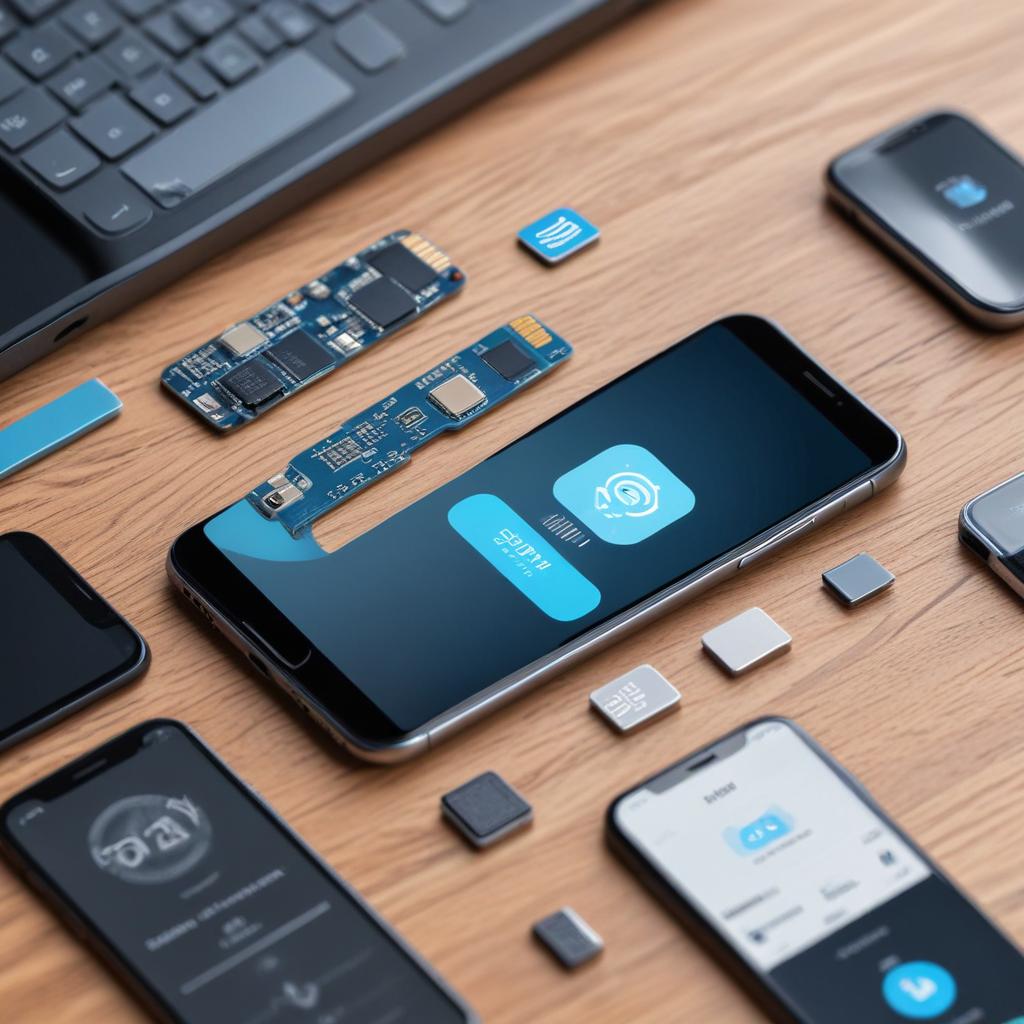
How to cleanly transfer eSIM profiles between phones
05/03/2026
Understanding eSIM Technology
An eSIM, short for embedded SIM, is a revolutionary digital SIM technology that is transforming the way mobile devices connect to cellular networks. Unlike traditional SIM cards, which are physical chips inserted into a phone, an eSIM is embedded directly into the device’s hardware. This small chip can store multiple network profiles digitally, allowing users to switch carriers or mobile plans without having to change physical cards.
The core functionality of an eSIM lies in its ability to download and activate mobile network profiles over the air. Carriers provide activation codes or QR codes that can be scanned or entered into the device, instantly provisioning the cellular service. This process is managed through the device’s software interface, making it faster and more convenient to set up or change mobile service compared to the manual swapping of traditional SIM cards.
One of the most significant advantages of eSIM technology is its flexibility. Because the digital SIM is embedded inside the device, you can store multiple profiles at once. For example, a user might have one profile for personal use, another for business, and even a third for international roaming. This multitasking capability simplifies managing different numbers and plans on a single device without juggling multiple SIM cards.
Moreover, eSIMs enhance device design and durability by eliminating the need for a physical SIM slot. This creates more space inside smartphones and other mobile devices, potentially allowing for larger batteries or slimmer profiles. It also improves the device’s resistance to dust and water since the SIM slot, a common entry point for contaminants, is removed.
From the perspective of mobile technology evolution, eSIMs represent a key step toward more integrated and user-friendly telecommunications. They facilitate faster network switching, support seamless connectivity across multiple devices, and reduce reliance on plastic SIM cards, which have environmental and logistical impacts. As carriers and manufacturers continue to adopt embedded SIM technology, eSIMs are becoming the new standard for mobile connectivity worldwide.
In summary, the embedded SIM or digital SIM provides a modern, efficient, and flexible alternative to traditional SIM cards. By leveraging eSIM technology, users gain greater control over their mobile service, enhanced device design benefits, and a smoother mobile experience overall.
What is an eSIM Profile?
An eSIM profile, also known as a digital SIM profile, is a software-based representation of a traditional SIM card embedded directly within a device. Unlike physical SIM cards, an eSIM profile contains all the essential information needed to connect to a mobile network without the need for a physical card. This profile stores carrier-specific data such as your phone number, network authentication keys, and mobile network settings.
The primary role of an eSIM profile is to enable seamless mobile network connectivity by providing the device with credentials to access the carrier’s network. When activated, the eSIM profile functions like a regular SIM card, allowing users to make calls, send texts, and use mobile data. However, because it’s digital, it offers greater flexibility—users can download or switch carrier profiles without changing physical SIM cards, which is especially useful during international travel or when switching providers.
Each eSIM profile essentially represents a unique carrier profile tailored to the mobile network operator. This carrier profile includes settings that help the device identify the network, authenticate the user, and configure data plans. Managing these profiles digitally allows for quicker activation and easier management of multiple plans on a single device. In essence, the eSIM profile is the critical link between your device and your mobile network, ensuring uninterrupted connectivity through a compact, software-driven solution.
Benefits of Using eSIMs
eSIM technology brings a range of significant benefits, making mobile connectivity more flexible and convenient than ever before. One of the primary eSIM benefits is the ease of switching carriers without the hassle of swapping physical SIM cards. This flexibility allows users to quickly change their service provider through software settings, saving time and effort especially when traveling or seeking better network plans.
Another key advantage of eSIMs is their support for multiple profiles on a single device. Users can store several carrier profiles simultaneously, enabling seamless switching between personal, business, or international numbers without the need for multiple phones or SIM cards. This greatly enhances device compatibility for individuals who depend on various networks or travel frequently.
Furthermore, eSIMs contribute to a cleaner device design by eliminating the physical SIM card tray, allowing manufacturers to optimize space for other hardware improvements. The flexibility provided by eSIM technology is also crucial for the future of IoT devices and wearables, where compactness and remote connectivity management are essential.
In summary, eSIMs offer unparalleled flexibility with carrier switching, support for multiple profiles, and enhanced device compatibility. These benefits collectively streamline mobile connectivity, making eSIMs a smart choice for modern mobile users seeking convenience and efficiency.
Preparing to Transfer Your eSIM Profile
Before you initiate the transfer of your eSIM profile, it’s crucial to undertake specific steps for transfer preparation. This ensures a smooth transition between your current device and the new one without service interruptions. Proper preparation involves checking carrier support, backing up your eSIM, and confirming compatibility between your devices.
- Verify Carrier Support for eSIM Transfer: Not all carriers support direct eSIM profile transfers. Contact your mobile service provider to confirm their policies and procedures for transferring eSIM profiles. This step helps you understand any requirements or restrictions and whether you might need to request a new eSIM activation or QR code for the new device.
- Check Device Compatibility: Ensure both your current phone and the destination phone support eSIM technology and are unlocked if required. Compatible devices are essential for a successful transfer. Some older models or certain carriers might limit eSIM functionalities, so confirming device compatibility beforehand prevents issues during setup.
- Backup Your eSIM Profile if Possible: Although eSIM data is generally stored securely by carriers, some manufacturers or software versions allow you to create a backup of your current eSIM profile. This backup acts as an insurance policy in case something goes wrong during the transfer, enabling you to restore your profile without contacting support.
- Update Your Devices’ Software: Having the latest operating system on both devices ensures you have access to the newest eSIM management features and fixes. System updates often improve transfer processes, enhancing stability and reducing errors.
- Charge Your Devices Fully: The transfer process often requires both phones to be powered and connected to the internet. Fully charged batteries prevent unexpected shutdowns mid-transfer, which could interrupt the process and cause complications.
- Prepare Necessary Account Credentials: Some carriers require you to log in to your account during or after the eSIM transfer. Gather all necessary usernames, passwords, and any two-factor authentication tools beforehand to speed up the procedure and avoid delays.
By meticulously following these transfer preparation steps, you position yourself for a seamless and hassle-free eSIM profile move. Ensuring carrier support, device compatibility, backup availability, and preparedness with credentials guarantees your mobile service remains uninterrupted throughout the transition.
Check Device Compatibility
Before you start transferring eSIM profiles between phones, it’s crucial to verify device compatibility. Not all smartphones support eSIM functionality, so checking whether both your old and new phones are eSIM supported phones is the first step. This ensures a smooth transfer process without unexpected interruptions.
Begin by reviewing your current smartphone eSIM capabilities. Most modern flagship devices come equipped with hardware requirements necessary for eSIM, but older models might lack this feature. Consult your phone’s specifications or visit the manufacturer’s website to confirm if eSIM is supported. This step prevents potential issues and helps you understand what transfer options are available.
Next, look into your new device’s eSIM capabilities, ensuring it meets all hardware requirements for activating and using an eSIM profile. Some phones might need a software update or activation by your carrier to enable eSIM support. Confirming device compatibility includes checking carrier support as well, since not all carriers support eSIM on every device.
By thoroughly verifying the device compatibility on both ends, you avoid frustration and guarantee a clean and efficient transfer process. Understanding these hardware requirements and limitations associated with smartphone eSIM technology is essential to make the most of your digital mobile experience.
Contact Your Mobile Carrier
Before initiating the transfer of your eSIM profile, it is crucial to contact your mobile carrier to understand their specific policies regarding eSIM activation and transfers. Carrier support plays a key role in ensuring a smooth transition between devices, as each carrier may have different rules and procedures for eSIM management.
Confirming carrier policies ahead of time can help you avoid unexpected hurdles during the transfer process. Some carriers might require you to request a transfer authorization or submit a formal request to activate the eSIM on a new device. Others may provide dedicated tools or apps to facilitate the transfer, but these options vary widely.
Engaging with your carrier’s support team also allows you to receive personalized guidance tailored to your account and service type. This assistance can be invaluable, especially if you encounter any issues such as eSIM activation errors or connectivity problems after the transfer. Reliable carrier support ensures you have the necessary technical help to troubleshoot and resolve any complications quickly.
Ultimately, understanding your carrier’s policies and requesting the proper support in advance sets the foundation for a hassle-free eSIM transfer. It safeguards your mobile service continuity and helps you stay connected without interruption as you switch phones.
Backup Existing eSIM Data
Before transferring your eSIM profiles between phones, it is crucial to perform a thorough eSIM backup to ensure data preservation and profile safety. Unlike traditional SIM cards, eSIM profiles store critical settings and carrier information digitally, making it essential to handle backup procedures with care. Start by checking if your current phone or carrier offers a built-in eSIM backup feature. Many modern smartphones include options to export eSIM profiles to secure cloud storage or via encrypted files that can be restored later.
When performing an eSIM backup, avoid exposing your data to unsecured networks or public Wi-Fi. Use a trusted, encrypted connection to prevent any unauthorized access to your sensitive carrier information. Additionally, ensure that the backup is saved in a secure location, such as a password-protected cloud service or a safeguarded external device. This step protects your eSIM profiles from accidental loss or corruption during the transfer process.
Following the backup, verify the integrity of the saved data before proceeding with the profile transfer. This safeguard guarantees that you can restore your eSIM without losing connectivity. Remember that maintaining regular backup procedures is a reliable way to protect your mobile network access during any future phone upgrades or resets, thus maintaining profile safety and continuity of service.
Step-by-Step Guide to Transferring eSIM Profiles Cleanly
Successfully executing an eSIM transfer requires following a clear and careful step-by-step guide to ensure your profile migration goes smoothly without any setup errors on your new phone. Below is a detailed walkthrough to help you move your eSIM profiles cleanly from one device to another.
- Backup Your Current Phone Data: Before initiating any eSIM transfer, back up your existing phone data, including your carrier settings and eSIM profiles, if supported by your device. This precaution ensures you don’t lose important information during the transfer process.
- Check Carrier Support for eSIM Transfer: Verify that both your current phone’s carrier and your new phone support eSIM transfer functionalities. Some carriers may require specific apps or codes for seamless profile migration.
- Remove eSIM from Your Old Phone: On your old device, go to the cellular settings where the eSIM profiles are stored. Locate the profile you want to transfer and choose the option to remove or delete it. This step frees up the carrier profile for activation on your new phone.
- Prepare Your New Phone for eSIM Setup: Power on your new device and navigate to your cellular or mobile data settings. Select the option to add a new cellular plan or eSIM. Many phones will prompt you to scan a QR code or enter a code provided by your carrier to activate your eSIM profile.
- Use the Carrier’s Official App or Website: Some carriers provide dedicated apps or online portals designed for eSIM transfers. Use these tools to initiate the profile migration. Follow the prompts carefully to download and activate your eSIM on the new phone.
- Scan the QR Code or Enter Activation Details: If your carrier gives you a QR code or manual activation details, scan or input them accurately on the new phone. This step is critical to ensure the eSIM profile is correctly provisioned without errors.
- Verify Network Connection: After the eSIM profile is installed, check that your new phone connects to the cellular network successfully. Test calling, texting, or using mobile data to confirm the transfer was effective.
- Contact Your Carrier for Assistance if Needed: If you encounter any issues during the eSIM transfer, do not hesitate to contact your carrier’s customer support. They can provide specific troubleshooting steps and verify your account status.
- Remove the eSIM Profile from Your Old Phone (Final Step): Confirm that your new phone is fully operational with the transferred eSIM profile. Then, permanently delete the eSIM profile from your old device to prevent any potential conflicts or security risks.
Following this step-by-step guide ensures a clean eSIM transfer and smooth phone setup, reducing the chances of errors during the profile migration process. With careful preparation and execution, switching your eSIM from one phone to another will be a hassle-free experience.
Removing eSIM Profile from Old Phone
To ensure a smooth transition when transferring your eSIM profiles between phones, it is essential to properly remove the eSIM profile from your old phone. This step prevents any conflicts that could arise from having the same profile active on two devices simultaneously. Start by accessing your phone’s eSIM management settings, usually found in the cellular or mobile network section of your device settings. From there, locate the eSIM profile you wish to delete.
Before proceeding with profile deletion, confirm that the eSIM has been successfully activated on your new phone. After that, proceed to remove or deactivate the eSIM profile on your old device. This process typically involves selecting the profile and choosing an option such as “Remove” or “Delete eSIM.” Deactivation can also be an option depending on your phone model, which temporarily disables the profile without fully deleting it.
Removing the eSIM profile is crucial for old phone reset procedures. If you plan to sell, give away, or recycle your old phone, deleting the eSIM not only safeguards your mobile data but also prevents any unintended use of your mobile number. Additionally, it helps maintain proper eSIM management by freeing up a slot for future use on either your old device or new devices.
In summary, to avoid any issues with connectivity or service interruptions, always remember to remove the eSIM profile carefully. Doing so keeps your mobile experience seamless and secure across your devices.
Activating eSIM Profile on New Phone
To activate your eSIM on your new phone, you first need to add the eSIM profile during the new phone setup or afterwards through the settings menu. Start by navigating to the cellular or mobile data settings on your device. Look for the option to add a cellular plan or eSIM.
Next, you will be prompted to either scan a QR code provided by your carrier or enter the details manually. Scanning the QR code is the most straightforward method: open the camera or dedicated eSIM scanner on your new phone, then scan the QR code given by your carrier during the eSIM activation process. This code is essential to link your new device with your carrier’s network.
After scanning, follow the on-screen instructions to complete the activation step. Your carrier might require additional verification or a confirmation step through their app or website. Be sure to have your carrier’s activation instructions handy, as some carriers need you to confirm the activation remotely or enter a provided activation code.
Once the eSIM profile is added and activated, your new phone will connect to the carrier network automatically. It is advisable to test your connection by making a call or using mobile data to ensure the activation process was successful. This seamless process allows you to switch your cellular service to your new phone without the need for a physical SIM card.
Troubleshooting Common Transfer Issues
When transferring eSIM profiles between phones, users might encounter several common eSIM transfer problems that can be frustrating. One frequent issue is activation errors, where the new device fails to recognize or activate the transferred eSIM. This can happen due to network restrictions, outdated software, or incomplete transfer procedures. To resolve activation errors, ensure both devices are updated to the latest firmware, verify with your carrier that eSIM transfers are supported, and try restarting both phones before attempting the transfer again.
Connectivity issues may also arise post-transfer, such as unstable mobile data or failure to register on the network. These problems often stem from incorrect carrier settings or temporary network glitches. To fix connectivity issues, check the cellular settings on the new phone and reset network settings if necessary. Additionally, confirming that the eSIM profile is properly downloaded and enabled is essential. If problems persist, contacting your carrier’s support can provide tailored assistance and troubleshooting advice.
Support tips for minimizing eSIM transfer problems include backing up your current eSIM data if possible, patiently following the carrier’s transfer instructions, and avoiding simultaneous attempts on multiple devices. If you face persistent errors, it is helpful to document error messages or codes and share them with customer support to streamline the resolution process. Addressing these common issues with these solutions ensures a smoother, hassle-free eSIM transfer experience.

I’m a tech enthusiast who loves exploring how eSIMs simplify staying connected while traveling. I spend my free time testing new smartphones and sharing tips on getting the most out of mobile data abroad.