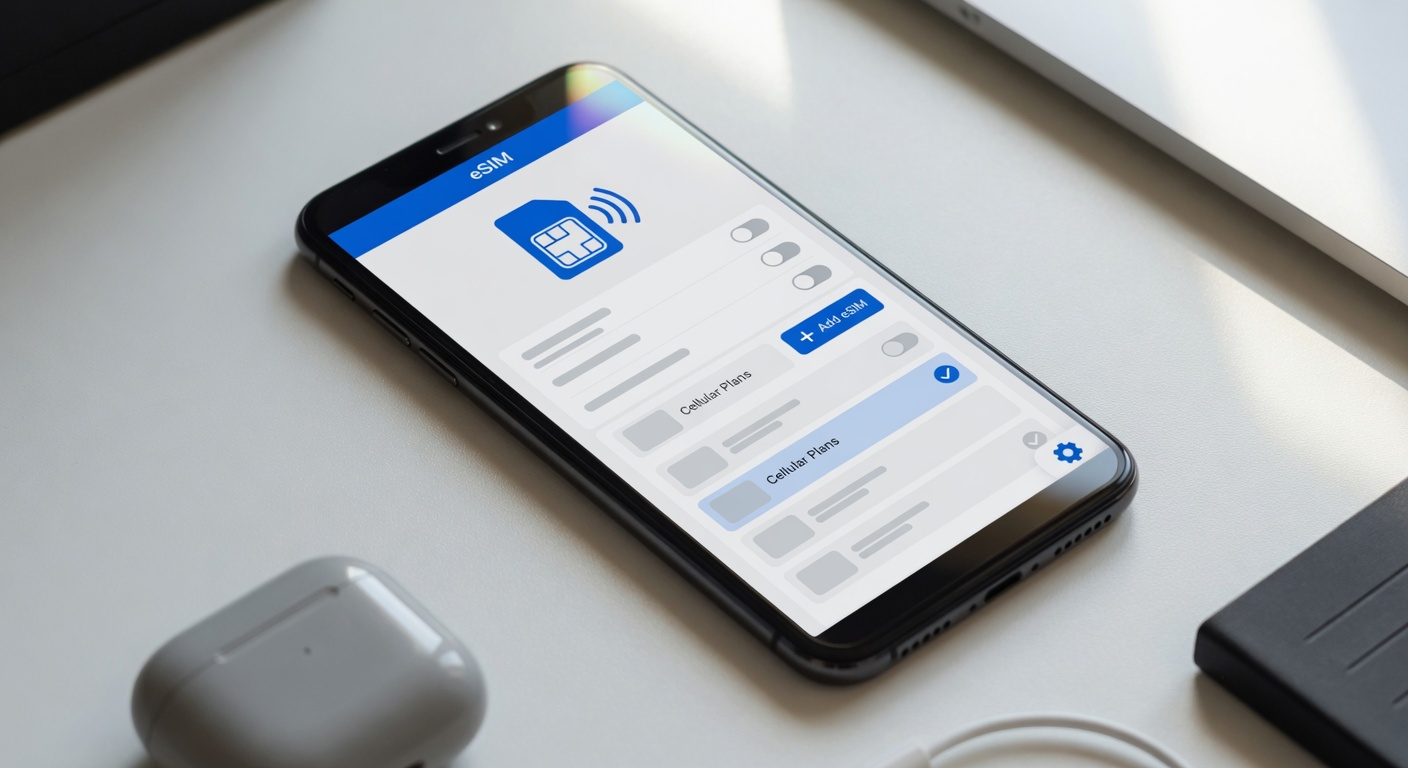
Managing eSIM settings
05/06/2026
Understanding eSIM Technology
eSIM technology, also known as embedded SIM or virtual SIM, represents a revolutionary advancement in mobile connectivity. Unlike traditional physical SIM cards that you insert into your device, an eSIM is a digital SIM embedded directly into the device’s hardware. This means there is no need to physically replace or insert a card; instead, the SIM profile is downloaded and activated over the air.
The main difference between eSIM technology and traditional SIM cards lies in their form factor and flexibility. Physical SIM cards are removable chips that require manual installation and swapping when changing carriers or plans. On the other hand, an embedded SIM is built into the device at the manufacturing stage, allowing users to switch carriers or manage multiple profiles without swapping cards. This virtual SIM capability offers unparalleled convenience, especially for travelers and people managing multiple numbers.
One of the most significant benefits of eSIM technology is its ability to simplify mobile connectivity. With an eSIM, users can activate and switch carriers instantly, often through a simple software interface. This eliminates the need to visit a store or wait for a physical SIM card to be delivered. Additionally, eSIM supports multiple profiles on a single device, enabling easy separation of personal and business numbers or access to different regional plans while traveling abroad.
Beyond convenience, the embedded SIM enhances device design and security. Manufacturers can create slimmer devices without SIM card trays, potentially improving durability and water resistance. From a security standpoint, eSIMs are harder to remove or tamper with, reducing the risk of theft or unauthorized SIM swapping. Furthermore, mobile carriers can remotely provision or update SIM profiles, which streamlines network management and customer support.
In summary, eSIM technology represents a modern evolution in how mobile connectivity is managed. By replacing physical SIM cards with a virtual, embedded solution, it offers users greater flexibility, enhanced security, and simplified access to mobile networks. As adoption grows, embedded SIMs are set to become the new standard in mobile communication worldwide.
How eSIM Works
The eSIM functionality revolutionizes the way mobile devices connect to cellular networks by eliminating the need for physical SIM cards. Instead of inserting a physical card, users activate their eSIM through a digital profile downloaded onto their device. This activation process involves scanning a QR code or entering activation details provided by the mobile network operator, which initiates provisioning — the setup and configuration of the eSIM profile.
Once activated, the eSIM securely stores the subscriber information and network credentials, enabling seamless integration with mobile networks. This integration allows the device to authenticate with the network just like traditional SIMs but offers greater flexibility. Users can switch carriers, change plans, or add multiple profiles without swapping physical cards. The provisioning process also ensures that the device receives the necessary network settings, such as access point names (APNs), which enable proper communication with mobile data services.
Through remote management, mobile network operators can update or modify eSIM profiles over the air, enhancing user experience by simplifying plan changes and network configurations. This dynamic approach to activation and provisioning ensures efficient connectivity, enabling the eSIM to support multiple profiles and even operate in dual SIM mode, further integrating with mobile networks to provide continuous, reliable service.
Advantages of Using eSIMs
eSIM technology offers several significant eSIM benefits that enhance the overall mobile experience. One of the primary advantages is the flexibility it provides in switching carriers. Unlike traditional SIM cards, eSIMs allow users to change their mobile network provider without physically swapping out a card, making it easier to compare plans and adapt to different network conditions or travel destinations.
Another key advantage is the space-saving design of eSIMs. Since the eSIM is embedded directly into the device’s hardware, it eliminates the need for a physical SIM slot. This space can be repurposed for other essential components or to create slimmer, more compact devices. This aspect significantly contributes to modern device compatibility, as manufacturers can design gadgets with improved waterproofing and durability.
Remote provisioning is also a standout feature of eSIMs, allowing devices to be activated or updated over the air without visiting a store or handling physical cards. This capability streamlines the process of setting up new devices and managing multiple profiles on a single device, making it ideal for business users and travelers who require seamless connectivity.
Overall, the combination of flexibility in carrier switching, space-saving design, broad device compatibility, and remote provisioning capabilities makes eSIMs a forward-thinking solution for modern mobile connectivity needs.
Managing eSIM Settings on Your Device
Managing eSIM settings on your device is essential to ensuring smooth device configuration and mobile plan management. Whether you are switching carriers, adding a new mobile plan, or adjusting your existing eSIM profiles, understanding how to access and modify these settings can save you time and hassle.
To begin, most modern smartphones and tablets incorporate eSIM management within the device’s main settings menu. On iOS devices, you can go to Settings > Cellular or Mobile Data to view and manage your eSIM profiles. Here, you can add a new eSIM by scanning a QR code provided by your carrier or manually entering activation details. You can also switch between multiple installed eSIMs or remove one if it is no longer needed.
Android devices follow a similar process, but the terminology may vary slightly depending on the manufacturer and version. Typically, navigating to Settings > Network & Internet > Mobile Network > Advanced > Carrier or directly to Settings > Connections > SIM Card Manager will display your current eSIM profiles. Here, users can add, switch, or delete eSIMs. Some brands also provide shortcuts or dedicated apps to facilitate better mobile plan management.
When managing eSIM settings, it’s important to be aware of options like setting your preferred line for voice, SMS, and data. This allows you to configure exactly how your device uses each installed eSIM, optimizing connectivity depending on your needs—such as separating work and personal numbers or optimizing for travel.
Additionally, many devices offer the ability to rename eSIM profiles to keep track of multiple plans more easily. This feature helps in organizing and quickly identifying which mobile plan you are currently using or want to prioritize. Managing notifications and data usage restrictions for each eSIM is also typically possible within the settings.
Overall, becoming familiar with the eSIM settings interface on your device will empower you to fully manage your mobile plans without extra assistance. By knowing where to find these options and how to apply changes, you gain complete control over your device configuration and enhance your mobile experience.
Adding and Activating an eSIM Profile
Adding and activating an eSIM profile is a straightforward process that can be done using QR codes or carrier apps on most popular devices. Follow these steps to activate your eSIM mobile plan efficiently.
- Open your device’s settings and navigate to the mobile network or cellular section.
- Select the option to add a new cellular plan or eSIM profile.
- Choose to scan a QR code if your carrier provided one. Use your phone’s camera to scan the QR code eSIM to import the profile.
- If you don’t have a QR code, open your carrier’s app and follow their instructions to add and activate an eSIM profile directly within the app.
- After the profile is added, confirm the activation by following the on-screen prompts. This may include selecting your new plan or confirming network settings.
- Wait for the mobile plan activation to complete; your device may restart or briefly lose connectivity during this process.
- Once activated, your eSIM profile will be ready to use alongside or instead of your physical SIM card, depending on your device settings.
- Test your mobile data and calling capabilities to ensure the activation was successful.
Switching Between eSIM Profiles
Switching between eSIM profiles on your device is a straightforward process that allows you to manage multiple profiles with ease. To switch eSIM profiles, start by opening the mobile data settings on your phone. Within these settings, you will find the option for profile selection, where all your installed eSIM profiles are listed. Select the profile you want to activate for your current usage.
Managing multiple profiles is especially useful if you use different numbers for voice and data or if you travel frequently and want to switch between local carriers without physically changing SIM cards. When you switch an eSIM profile, you can designate which profile will serve as the primary data line and which will handle voice calls. This management ensures you optimize coverage and costs according to your needs.
To change the primary data line, simply select the profile you want to use as your main source for mobile data within the mobile data settings. Similarly, you can select which eSIM profile is used for voice calls, allowing you to have separate lines active simultaneously or switch between them as needed. This flexibility makes it simple to keep personal and work numbers separate or handle various data plans with a single device.
Overall, switching between eSIM profiles and managing your primary data and voice lines from the profile selection menu empowers you with full control over your mobile connectivity, offering a seamless way to adapt to different networks and requirements without hassle.
Deleting or Deactivating an eSIM Profile
When an eSIM profile is no longer needed on your device, it’s important to know how to properly delete or deactivate it to free up space and maintain your device’s organization. Removing an eSIM is a straightforward process but varies slightly depending on your device’s operating system.
To delete an eSIM on most smartphones, start by navigating to the cellular or mobile data settings. Look for the section labeled “eSIM” or “Mobile Plans.” Here, you will see a list of all active and inactive eSIM profiles stored on your device.
Select the eSIM profile you wish to delete or deactivate, then tap on the option to remove the eSIM or delete the profile. Confirm your choice when prompted to reset eSIM settings tied to this profile. This action will deactivate the profile and remove it from your device, freeing up space for new profiles or connections.
If you only want to temporarily deactivate a profile, some devices offer an option to turn off the profile without deleting it. This keeps the eSIM profile saved, allowing you to reactivate it later without needing to reinstall or scan a QR code again. However, if you aim to completely free up your device from unused profiles, deleting the eSIM is the recommended approach.
Regularly managing your eSIM profiles, including deleting or deactivating unneeded ones, helps optimize device performance and ensures your mobile settings remain tidy and efficient.
Troubleshooting Common eSIM Issues
Managing eSIM settings can sometimes present challenges, but understanding the common eSIM problems and their solutions can make the process smoother. Among the most frequent issues users face are installation errors, activation issues, and connectivity problems. Addressing these effectively requires a combination of careful troubleshooting and knowing when to seek additional support.
Installation errors often occur when the eSIM profile fails to download or activate properly on the device. This can be caused by software glitches, network interruptions, or improper QR code scanning. To resolve installation errors, ensure your device software is up to date and that you have a stable internet connection during the eSIM setup process. Additionally, retry scanning the QR code or manually enter the activation details if the automatic method fails.
Activation issues are another common hurdle, where the eSIM profile is installed but won’t activate with the carrier. This can be due to carrier-related restrictions, incorrect eSIM plan setup, or server problems on the provider’s end. For activation issues, verify that your carrier supports eSIM on your device and that your plan is correctly provisioned. Contacting customer support can often help resolve backend issues or confirm the activation status.
Connectivity troubleshooting is critical when the eSIM is active but experiencing inconsistent mobile data or network dropouts. This can arise from network compatibility issues, signal interference, or device configuration errors. To troubleshoot connectivity, restart your device, toggle airplane mode, and check that the eSIM data plan is active and selected as the default for mobile data. If problems persist, try resetting network settings on your device or switching between available carriers if dual-SIM functionality is enabled.
For best results when facing eSIM problems, keep your device’s firmware updated and regularly check for carrier notifications regarding service changes. Documenting your troubleshooting steps can aid in quick diagnosis if you need to escalate the issue. In summary, the key to resolving installation errors, activation issues, and connectivity challenges lies in a systematic approach—update software, verify carrier support, confirm correct setup, and perform targeted network troubleshooting.
Activation Failures and Fixes
Activation failure of an eSIM can be frustrating and may occur for several reasons including eSIM errors, carrier support issues, or network problems. Understanding these causes and following systematic troubleshooting steps can help resolve most activation issues.
- Check Network Connection: Ensure your device has a stable internet connection either via Wi-Fi or cellular data before starting activation. Unstable or weak networks can cause eSIM activation to fail.
- Verify Carrier Support: Confirm that your mobile carrier supports eSIM on your device model and plan. Sometimes activation failures stem from carriers not fully provisioning eSIM services.
- Restart Device: A simple restart can often clear temporary software glitches that cause eSIM errors during activation.
- Reinstall the eSIM Profile: If possible, delete the current eSIM profile and try scanning the QR code or entering the activation information again.
- Update Device Software: Make sure your device is running the latest operating system version, as updates often fix bugs related to eSIM functionality.
- Contact Carrier Support: If issues persist, get in touch with your carrier’s customer service. They can verify account status, provide activation codes, or reset the eSIM provisioning on their end.
- Check for Device Compatibility: Some older device models may not fully support eSIM activation, so verify compatibility with your carrier and device manufacturer.
By following these steps attentively, most eSIM activation failures can be resolved, allowing seamless use of digital mobile connectivity.
Connectivity and Signal Problems
Managing eSIM connectivity issues requires understanding that signal drops or no service problems can occasionally happen due to network configurations or device compatibility. When experiencing signal issues, the first step is to verify that the eSIM profile is properly activated and that the device supports the carrier’s network bands. Sometimes, simply restarting your device can refresh the connection and resolve temporary glitches causing network drop.
In the case of persistent mobile data problems, ensure that the device’s network settings are correctly configured for the eSIM, including APN settings, which are crucial for mobile data access. Switching airplane mode on and off can also reset the cellular radios and re-establish a better connection. If problems continue, removing and reinstalling the eSIM profile might be necessary to fix corrupted profiles or outdated configurations.
Signal issues specific to eSIM setups can sometimes be caused by regional coverage limitations or network congestion. Checking carrier updates or firmware upgrades for your device can improve overall connectivity. If you frequently face network drop or no service, contacting your carrier for troubleshooting support or a possible refresh of your eSIM registration can help ensure stable service.

I’m a tech enthusiast who loves exploring how eSIMs simplify staying connected while traveling. I spend my free time testing new smartphones and sharing tips on getting the most out of mobile data abroad.