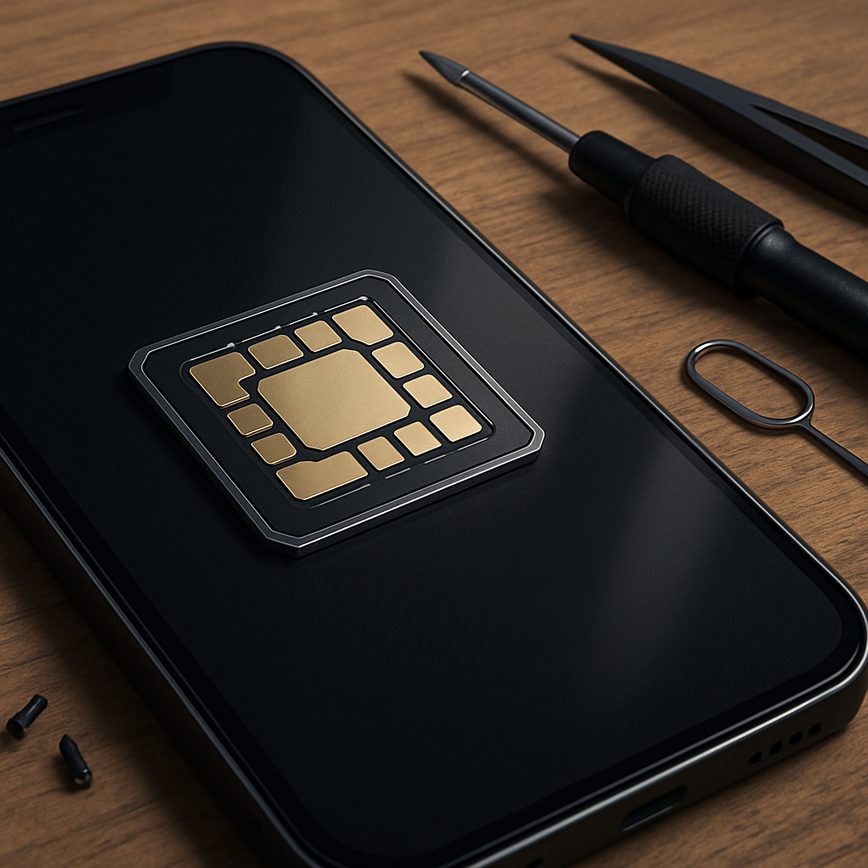
Troubleshooting eSIM issues
22/05/2026
Common eSIM Issues and Their Causes
eSIM technology has brought significant convenience to mobile users, but it is not without its challenges. Many users encounter eSIM problems that can disrupt their cellular connectivity and overall experience. Understanding the typical eSIM errors and their root causes is essential for effective eSIM troubleshooting.
One of the most common issues users face is the failure to activate the eSIM profile. This problem often arises due to incorrect or expired QR codes provided by carriers or improper scanning of the QR code during setup. Activation errors may also stem from server-side issues on the carrier’s end, where the eSIM profile is not properly provisioned or synchronized.
Another typical eSIM problem involves the device not recognizing the installed eSIM profile. This can happen if the device’s firmware or operating system is outdated and lacks full compatibility with eSIM functionality. Additionally, hardware limitations or defects in the device’s SIM module can prevent proper detection of the embedded SIM.
Connectivity issues, such as intermittent service or failure to connect to the mobile network, are also frequent with eSIM use. These eSIM errors can result from conflicts between multiple installed profiles on the same device, causing prioritization problems. Network restrictions set by carriers or geographical limitations may also prevent the eSIM from functioning correctly outside of specific regions or networks.
Others face challenges when attempting to switch between eSIM profiles or revert to a physical SIM card. This can lead to errors if the device hasn’t properly deleted or deactivated the previous eSIM profile, causing system conflicts. Moreover, some carriers impose restrictions on the frequency of eSIM profile changes, which can be a cause of errors during switching attempts.
In summary, eSIM troubleshooting frequently revolves around issues like activation failures, detection problems, connection instability, and profile management conflicts. Many of these problems can be traced back to outdated software, carrier limitations, or procedural errors during setup. Being aware of these typical issues and their causes is the first step toward ensuring smooth eSIM operation and resolving any complications efficiently.
Activation Failures
eSIM activation can sometimes fail due to several reasons, causing frustration during the eSIM setup process. One common cause is an activation error resulting from network issues or poor internet connectivity. Since eSIM activation typically requires a stable connection for communication with the carrier’s servers, weak or unstable internet can interrupt the process. Ensuring a strong Wi-Fi or mobile data connection before beginning activation can prevent such errors.
Another frequent reason for eSIM activation failure is incorrect QR code scanning or input errors. The eSIM activation code is unique and must be scanned or entered exactly as provided by the carrier. Any mistake during this step can cause the activation to fail. Double-checking the QR code or manual details before proceeding helps avoid this issue.
Sometimes, the device itself may not support the specific eSIM profile, or the carrier’s system may be experiencing temporary outages or restrictions on the eSIM service. It is advisable to verify device compatibility with the carrier and confirm that the eSIM service is available in your region. Contacting customer support can also clarify if there are any account or network restrictions causing the activation error.
To fix activation failures, restarting the device and attempting the setup again often resolves minor glitches. Additionally, resetting network settings can help eliminate conflicts interfering with activation. Keeping your device updated with the latest software version ensures optimal support for eSIM features and reduces the chance of errors.
In summary, paying close attention to network connectivity, scanning accuracy, device compatibility, and carrier status can significantly reduce eSIM activation errors, leading to a smoother eSIM setup experience.
Connectivity and Network Problems
When using an eSIM, you might encounter network issues such as no signal or intermittent connectivity, which can disrupt your mobile experience. These problems often stem from misconfigured settings, carrier restrictions, or physical location barriers affecting signal strength. Troubleshooting these issues promptly ensures reliable eSIM connectivity and uninterrupted network access.
- Check if your device is in airplane mode; if so, disable it to restore network connections.
- Verify that your eSIM profile is activated and properly installed. Sometimes, a corrupted or incomplete installation can cause network issues.
- Restart your device to refresh network settings and potentially resolve minor glitches affecting eSIM connectivity.
- Ensure your carrier supports eSIM in your current location. Network issues or no signal can occur if the carrier has limited coverage or restrictions.
- Manually select your carrier in the device’s network settings to force a network connection, especially in areas with weak signals.
- Reset your network settings to clear any incorrect configurations that might be disrupting your eSIM connection.
- Update your device’s firmware and carrier settings to ensure compatibility and optimal performance with your eSIM.
- Contact your carrier if problems persist, as there may be account issues or network outages affecting your eSIM service.
Compatibility and Device Support
Ensuring device compatibility is crucial when troubleshooting eSIM issues. Not all mobile devices support eSIM profiles, and compatibility varies widely depending on the manufacturer and model. To avoid connectivity problems, it is essential to verify your device’s eSIM support before attempting to activate or transfer an eSIM profile.
Device compatibility issues arise because some phones and tablets do not have the necessary hardware or software to handle eSIM profiles. For example, an older model may only support traditional SIM cards, or a device might only support eSIM profiles from specific carriers. Additionally, eSIM support can differ between regions and network providers, affecting how a mobile device can use the eSIM service.
To check if your mobile device supports eSIM, start by reviewing the manufacturer’s official specifications, which usually list “eSIM support” as a feature. You can also find device compatibility information on carrier websites, where they often provide a list of supported devices for their eSIM services. Another practical way is to look into your device’s settings under cellular or SIM management options—if you see an eSIM or “add cellular plan” option, your device likely supports eSIM functionality.
Understanding device compatibility is the first step to resolving many eSIM issues and helps ensure a smooth setup. Always confirm your mobile device compatibility and eSIM support before starting the activation process to prevent common errors and connection problems.
Step-by-Step Troubleshooting for eSIM Issues
Experiencing issues with your eSIM can disrupt your mobile connectivity, but with the right troubleshooting guide, you can fix eSIM errors quickly and effectively. This step-by-step troubleshooting guide will help you resolve common eSIM issues and get back online smoothly.
- Verify Device Compatibility: First, ensure your device supports eSIM functionality. Check the manufacturer’s specifications or user manual. Some older devices or regional variants might not be compatible with eSIM technology.
- Check eSIM Profile Installation: Confirm if the eSIM profile is properly installed on your device. Go to your device’s settings and locate the Cellular or Mobile Data section to see if your eSIM plan is active and listed correctly.
- Verify Network Coverage: Poor network coverage or outages can cause eSIM errors. Check your carrier’s coverage area and ensure that you have an active data connection. Switching to airplane mode and back can sometimes reset the connection.
- Reset Network Settings: If you’re facing persistent issues, try resetting your network settings. This action can resolve conflicts by clearing saved Wi-Fi, Bluetooth, and cellular settings without deleting personal data.
- Update Device Software: Software bugs can cause eSIM errors. Check for any available software updates for your device and install them. Updated firmware often includes patches that improve eSIM compatibility and performance.
- Reinstall the eSIM Profile: Remove the current eSIM profile and reinstall it using the QR code or activation details provided by your carrier. This can fix corruption or misconfiguration issues affecting connectivity.
- Contact Your Carrier: If issues persist after all steps, reach out to your mobile carrier. They can provide insights into account status, provision new eSIM profiles, or address any backend network problems impacting your device.
- Backup and Restore Device: As a last resort, backup your important data and perform a factory reset. Sometimes, deeper system glitches require a full reset to restore proper eSIM functionality.
Verifying eSIM Activation and Profile Installation
To ensure a seamless eSIM experience, it’s crucial to verify activation status and confirm that the eSIM profile installation has been completed correctly. Start by navigating to the settings menu on your device, typically under the “Cellular” or “Mobile Data” section. Here you can view the list of installed eSIM profiles. Look for the profile associated with your carrier and check its status—if it indicates “Active” or “Connected,” your eSIM is properly activated.
If your device does not display an active eSIM profile, review the eSIM setup steps provided by your carrier. This often involves scanning a QR code or entering an activation code manually. Make sure that your device is connected to Wi-Fi during this process, as it usually requires internet access to download and apply the eSIM profile.
Additionally, some devices allow you to verify activation by making a test call or checking data connectivity after installing the profile. If you experience issues, try removing the eSIM profile and reinstalling it by following the original setup instructions closely. Always confirm the profile installation within your device’s settings to avoid connectivity interruptions.
In summary, to verify activation and profile installation effectively, check the eSIM status in your device settings, follow your carrier’s eSIM setup steps accurately, and test to ensure the connection is properly established. This approach helps to resolve common eSIM setup issues promptly.
Resetting Network Settings and Device Restart
When facing connectivity issues with your eSIM, one of the most effective troubleshooting methods is to reset your network settings. This process clears out all saved Wi-Fi networks, cellular settings, and VPN configurations, allowing your device to start fresh and resolve potential conflicts causing connection problems. To reset network settings, go to your device’s settings menu, find the “Reset” or “General Management” option, and select “Reset Network Settings.” Confirm the action and wait for the device to complete the process. Keep in mind that you may need to re-enter Wi-Fi passwords after the reset.
In addition to resetting network settings, performing a device restart is a straightforward yet powerful step in network reset troubleshooting. Restarting your device closes background processes and refreshes system functions that may interfere with your eSIM connectivity. Simply power off your device completely, wait a few seconds, and then power it back on. This can often resolve minor glitches and improve overall network performance.
Combining both a reset network action and a device restart provides a comprehensive approach to tackling eSIM connectivity troubles. If problems persist after these steps, it might be helpful to check for carrier updates or contact your mobile service provider for further assistance. Remember, regular network reset troubleshooting, including resetting network settings and device restart, is a simple way to maintain a smooth and reliable connection with your eSIM-enabled device.
Contacting Carrier Support and Software Updates
When troubleshooting eSIM issues on your device, it’s important to know when to reach out for additional help. If initial attempts to resolve connectivity or activation problems have not worked, contacting your carrier support is a crucial next step. Carrier support teams specialize in eSIM technology and can provide tailored assistance for complex problems that may involve account settings, network provisioning, or SIM profile activation.
Before contacting carrier support, gather relevant information such as your device model, current eSIM status, error messages, and any troubleshooting steps already taken. This preparation will help the support team diagnose and solve your issues more efficiently. Many carriers offer multiple support channels including phone, chat, and email, so choose the method most convenient for you to receive timely eSIM customer help.
In addition to carrier support, regularly checking for software updates on your device is essential. Manufacturers frequently release updates that fix bugs, improve eSIM compatibility, and enhance overall performance. To check for updates, go to your phone’s settings and look for system updates or software updates. Installing the latest software can sometimes resolve eSIM problems without further intervention.
In summary, if troubleshooting steps fail, immediately contact your carrier support for expert eSIM customer help and ensure your device software is up to date. This combined approach increases the chances of quickly restoring full eSIM functionality.
Preventative Measures and Best Practices
To ensure your eSIM performs optimally and avoid common issues, adopting proper eSIM maintenance and best practices is essential. Taking proactive steps can save you time and prevent connectivity disruptions in your daily use.
Here are key steps to prevent eSIM issues and maintain seamless service on your device:
- Keep Your Device Software Updated: Regularly update your smartphone’s operating system and carrier settings. Software updates often contain important fixes and enhancements for eSIM compatibility and connectivity.
- Backup Your eSIM Profile: Before making changes or resetting your device, ensure you have backed up your eSIM information if your device supports this feature. This helps avoid losing your eSIM profile and having to re-activate service.
- Avoid Frequent Switching Between eSIM Profiles: While switching profiles is a key feature, excessive toggling can cause sync issues. Only switch profiles when necessary and allow sufficient time for the device to adjust and register with the network.
- Use Trusted Networks to Download eSIM Profiles: When downloading or activating an eSIM, always use secure and stable Wi-Fi or mobile networks. Interruptions during download can corrupt the eSIM profile.
- Monitor Storage and Data Usage: Ensure your device has adequate storage space, as insufficient memory can impact eSIM performance. Additionally, monitor data usage to detect any abnormal activity that may indicate underlying issues.
- Follow Carrier Guidelines: Different carriers may have specific instructions regarding eSIM activation and usage. Always follow their best practices recommendations to avoid compatibility problems.
- Keep Your eSIM QR Code or Activation Information Safe: Store your eSIM QR code or activation details in a secure place. These may be needed if you have to reinstall or troubleshoot your eSIM profile.
- Restart Your Device Periodically: A simple restart can refresh network connections and resolve minor glitches that affect eSIM operation.
- Contact Support Promptly When Issues Arise: If you face persistent eSIM problems, contacting your carrier or device manufacturer early can help prevent further complications and provide tailored solutions.
By incorporating these preventative measures and best practices into your routine, you can maintain a stable and reliable eSIM experience. Proper eSIM maintenance not only avoids frustrations but also maximizes the benefits of digital mobile connectivity.
Regularly Updating Device Software
Keeping your device software up to date is crucial for ensuring optimal eSIM performance. Software updates often include important patches that enhance compatibility between your device and the eSIM technology. Without these updates, you may encounter connectivity problems, interrupted service, or reduced functionality.
Regular software updates are a key aspect of device maintenance. They not only fix bugs but also introduce new features that improve the user experience and overall device security. For eSIM users, staying current with software ensures that your device can properly communicate with your carrier’s network and supports the latest standards and protocols.
Neglecting to install software updates can lead to compatibility issues, where your device may fail to recognize or activate the eSIM, causing inconvenience and potential service outages. Additionally, updates often include performance optimizations that help maintain efficient data handling and battery usage when using an eSIM.
To prevent these issues, it is recommended to enable automatic updates or regularly check for new software releases from your device manufacturer. By doing so, you ensure that your device remains compatible with evolving eSIM technology, securing a seamless and reliable mobile experience.
Using Supported Devices and Reliable Carriers
When it comes to minimizing eSIM-related problems, selecting supported devices and reliable carriers plays a critical role. Not all devices are compatible with all eSIM technologies, so ensuring that your device explicitly supports eSIM functionality is essential. Supported devices have undergone rigorous testing to guarantee seamless activation, management, and switching of eSIM profiles, reducing the chances of glitches or errors during use.
Equally important is choosing a carrier known for its reliability and strong network infrastructure. Carrier reliability directly impacts the performance and usability of your eSIM. A trustworthy carrier will offer consistent network coverage, timely customer support, and straightforward eSIM activation processes. This combination helps avoid common issues such as failed activations, dropped connections, or data interruptions.
To ensure optimal eSIM compatibility, research both your device model’s eSIM capabilities and the carriers available in your region. Many carriers publish lists of supported devices and offer online tools to check compatibility. Verifying these details beforehand enables users to avoid incompatibility frustrations and enjoy a smooth, hassle-free mobile experience. By prioritizing supported devices and carrier reliability, you can confidently leverage the full benefits of eSIM technology without unnecessary setbacks.

I’m a tech enthusiast who loves exploring how eSIMs simplify staying connected while traveling. I spend my free time testing new smartphones and sharing tips on getting the most out of mobile data abroad.