eSIM troubleshooting tips
15/07/2026
As eSIM technology becomes increasingly prevalent in smartphones and mobile devices, users may encounter various issues during activation and usage. Troubleshooting eSIM problems can be daunting, especially for those unfamiliar with the technology. This article offers practical tips for resolving common eSIM issues, ensuring you stay connected whether at home or while traveling. From activation errors to connectivity problems, these insights will help you navigate the complexities of eSIM technology.
Understanding eSIM Activation Errors
Activation errors are among the most common issues users face when setting up an eSIM. Typically, these errors arise due to incorrect activation codes or settings. For instance, if you recently purchased an eSIM plan, ensure that you have received the correct QR code or activation details from your carrier. Double-check the information for any typos or missing characters, as even a small mistake can prevent activation.
Another frequent cause of activation errors is network compatibility. Not all devices support every eSIM carrier, particularly when traveling internationally. To avoid this, verify that your smartphone is compatible with the eSIM service you’re trying to activate. Additionally, confirm that your device’s software is up to date, as outdated software can lead to unexpected activation issues.
Resolving Unsupported eSIM Errors
Unsupported eSIM errors can occur if your device does not recognize the eSIM profile or if the profile is not compatible with your device. This issue often arises when trying to use an eSIM profile from a carrier that does not support your device model. To resolve this, check with your carrier to ensure they offer eSIM services for your specific device.
If you encounter an unsupported error, consider removing the existing eSIM profile and reinstalling it. Go to your phone’s settings, locate the eSIM section, and delete the problematic profile. After this, re-scan the QR code provided by your carrier to reinstall the eSIM profile. This process often resolves compatibility issues and helps establish a proper connection.
Troubleshooting Connectivity Issues
Even after successful activation, connectivity issues may arise with your eSIM. If you find that your mobile data is not functioning, start by ensuring that cellular data is enabled on your device. Navigate to your settings and confirm that mobile data is switched on and that you have selected the correct eSIM profile for data usage.
Another common connectivity issue is related to network selection. Some smartphones allow users to manually select which network to connect to, especially when multiple profiles are available. Ensure that your device is set to connect to the correct network, and if necessary, try toggling airplane mode on and off to reset the network connection.
Checking APN Settings
Access Point Name (APN) settings play a crucial role in your device’s ability to connect to the internet. Incorrect APN configurations can lead to data connectivity issues on your eSIM. To check your APN settings, go to your device’s settings, find the mobile network settings, and look for the APN section.
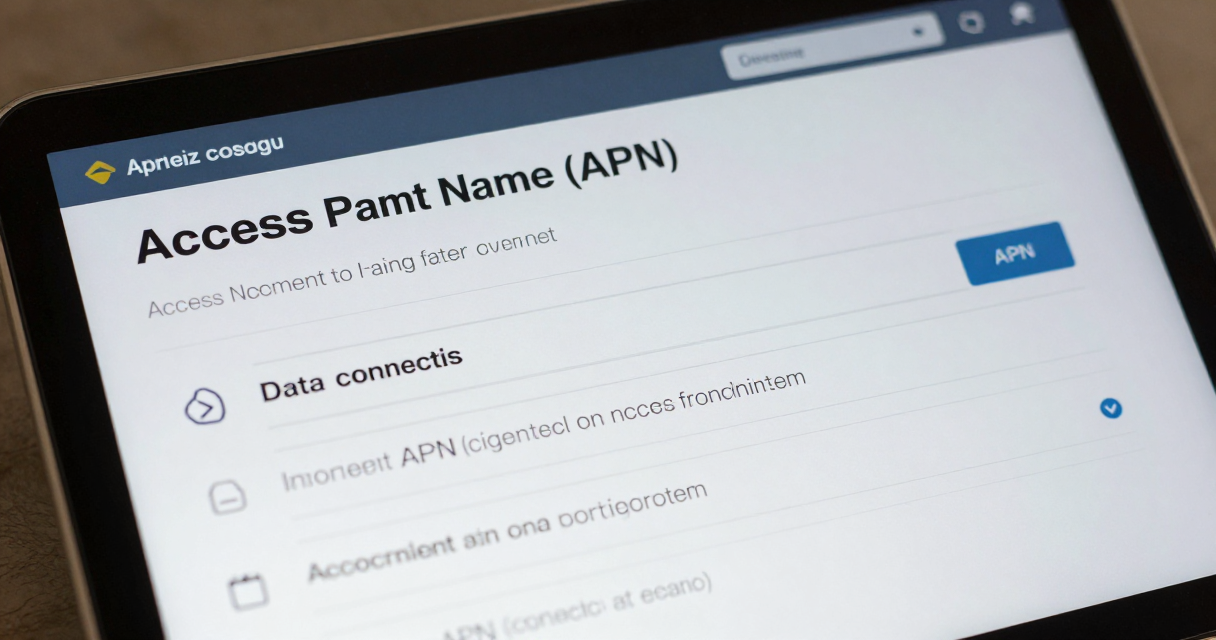
If you are unsure about the correct APN settings for your eSIM provider, contact your carrier for the necessary information. They can provide specific APN details that need to be entered into your device. After updating the APN settings, restart your smartphone to ensure the changes take effect, which may restore your data connectivity.
Dealing with SIM Not Provisioned Errors
Users may encounter a “SIM not provisioned” error when their eSIM profile is not properly set up or activated. This can happen if the eSIM has not been fully activated by the carrier or if there are issues with the account linked to the eSIM. To resolve this, first, contact your carrier to confirm that your eSIM has been activated on their end.
If your carrier confirms that the eSIM is active, try removing the eSIM profile from your device and then reinstalling it. Follow the activation instructions provided by your carrier carefully, ensuring that you scan the QR code and input any required details accurately. This process often resolves provisioning issues and allows your device to connect to the network.
Updating Device Software
Keeping your device software updated is essential for optimal performance, especially when using advanced features like eSIM. Software updates often include critical bug fixes and improvements that can resolve various connectivity issues. Regularly check for updates by going to your device settings and navigating to the software update section.
In addition to general updates, manufacturers often release specific updates to enhance eSIM functionality. If you experience persistent problems with your eSIM, updating your device may resolve these issues. After performing any updates, restart your device to ensure all changes take effect and check if the eSIM functionality has improved.
Seeking Help from Your Carrier
If you have tried all the troubleshooting steps and your eSIM still does not work, it may be time to contact your carrier for assistance. Carriers often have dedicated support teams that can help diagnose and resolve eSIM-related issues. When reaching out, be prepared to provide details about your device, the specific error messages you are encountering, and any troubleshooting steps you have already taken.
Many carriers also offer online support resources, including FAQs and troubleshooting guides, which can provide additional insights into common eSIM problems. Utilizing these resources can save you time and help you find solutions more efficiently, especially if you are traveling and need immediate assistance with your mobile data.
Using eSIM While Traveling
Traveling with an eSIM can be highly convenient, but it also presents unique challenges. Different countries may have varying eSIM compatibility, so researching local carriers and their coverage options is essential before you travel. Consider purchasing an eSIM plan that offers international coverage, which can save you from high roaming charges.
Before traveling, ensure your eSIM is activated and working correctly. Test your mobile data connection at home to avoid surprises when you reach your destination. Additionally, download any necessary apps or maps that may be useful during your trip while you still have access to Wi-Fi. This preparation can enhance your travel experience and keep you connected without interruptions.

I’m a tech enthusiast who loves exploring how eSIMs simplify staying connected while traveling. I spend my free time testing new smartphones and sharing tips on getting the most out of mobile data abroad.