
Troubleshooting eSIM Connection Issues: Quick Fixes for Dropped Calls and Slow Data
09/11/2026
Travelers who rely on eSIM technology often encounter moments when the signal drops or data speeds crawl to a halt. These interruptions can turn a smooth journey into a frustrating scramble to reconnect. Understanding why an eSIM connection problems occurs is the first step toward restoring reliable service. Unlike a physical SIM that you can pull out and reinsert, an eSIM lives embedded in the device’s hardware, managed by software profiles that can become stale or misaligned. This article walks through the most common culprits, from carrier profile glitches to regional network limitations, and offers practical steps to get you back online without needing to visit a store.
Profile Activation and Profile Removal
The most frequent cause of eSIM connection problems stems from how the profile is initially set up or later removed. When a profile fails to activate, the device may show “No Service” or rely solely on Wi‑Fi. This often happens if the activation code was entered incorrectly or if the carrier’s server is slow to respond. To resolve this, navigate to the cellular settings and select the option to remove the existing profile. After the profile is deleted, restart the phone to clear any residual cache. Then, re‑initiate the activation process, ensuring you have a stable Wi‑Fi connection during the download. Some carriers also provide a QR code that can be scanned again; if the original code has expired, request a fresh one from the provider. This simple reset often restores the link between the device and the carrier’s network.
In some cases, the profile may appear active but fail to provision data services. This can be due to a mismatch between the profile’s APN settings and the device’s current carrier selection. Users should verify that the Access Point Name settings match what the carrier has published. On most smartphones, these settings are hidden or auto‑configured, but occasionally a manual entry is required. If the data still does not flow, deleting the profile and starting over from scratch is usually the most reliable path. Remember to keep the device’s software updated, as firmware patches sometimes include fixes for profile handling bugs that can cause intermittent connectivity.
Network Selection and Roaming Settings
When traveling across borders, the phone may struggle to decide which network to join, leading to dropped calls and sluggish data. eSIM connection problems often manifest as the device repeatedly searching for a signal instead of locking onto the strongest available partner. To mitigate this, go into the cellular settings and manually select the carrier associated with your eSIM profile. Disabling automatic network selection forces the phone to use the profile you intend, rather than hopping between local networks that may have weaker coverage. Additionally, ensure that data roaming is enabled if you are in a country different from where the eSIM was originally purchased.
Roaming settings can also be a hidden source of frustration. Some carriers restrict data roaming unless a specific plan is active, even if the voice component works fine. Check the carrier’s app or website to confirm that your current subscription includes roaming privileges. If the option is greyed out, it may indicate that the plan does not support international use. In such scenarios, purchasing a separate travel data package from a third‑party provider like Airalo or Holafly can bridge the gap. These services are designed specifically for globetrotters and often provide more flexible data caps that reset daily or monthly, depending on the chosen package.
Antenna and Hardware Interference
Physical factors can also degrade eSIM connection problems, especially in regions with challenging radio environments. Metal objects, thick phone cases, and even the way the device is held can affect antenna performance. While the eSIM itself is internal, the antenna system that reads its profile is external and susceptible to interference. If you notice that signal strength fluctuates wildly, try removing any bulky case and repositioning the phone to see if the bars stabilize. In extreme cases, moving near a window or stepping outside can provide a clearer line of sight to cell towers.
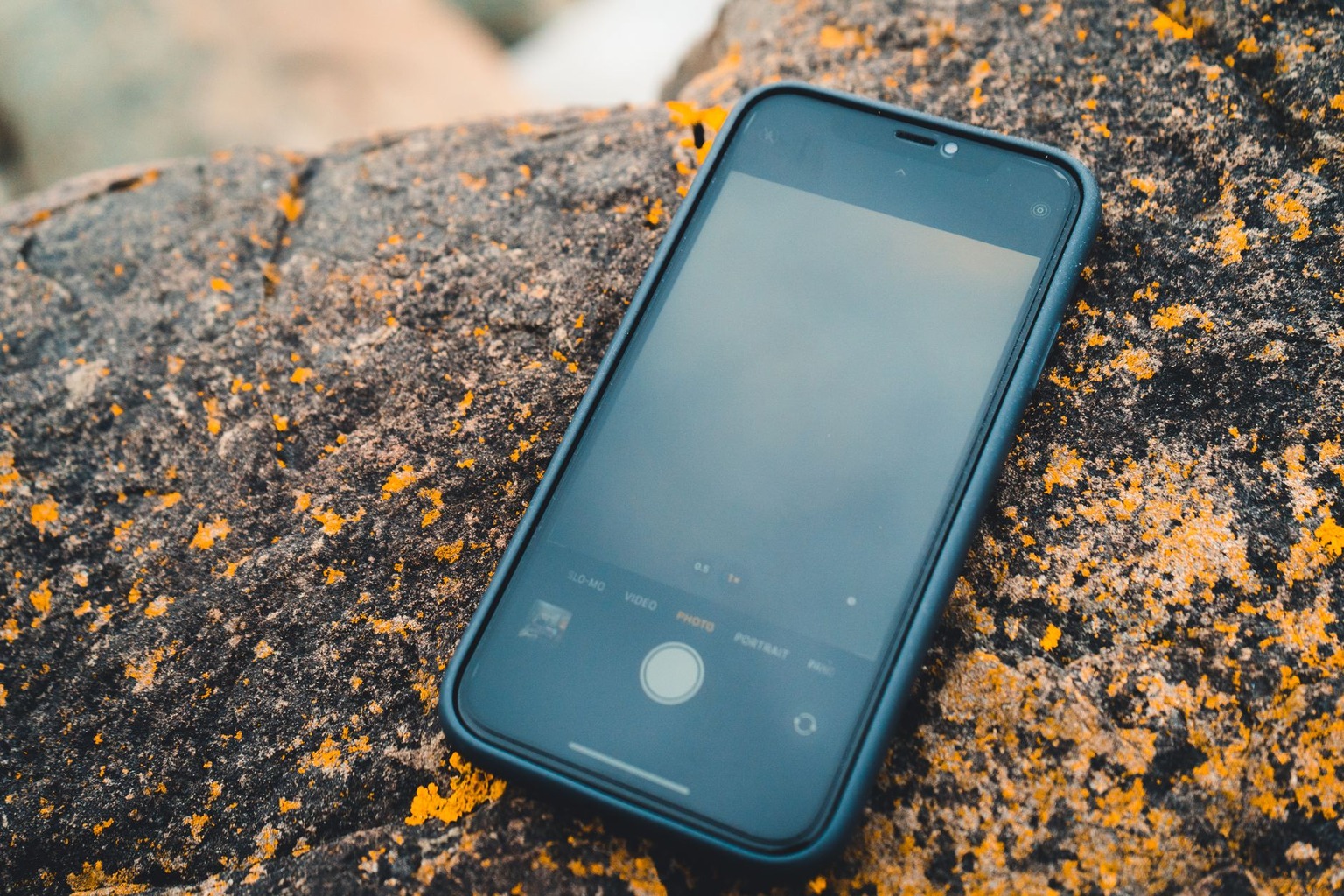
Another hardware-related variable is the device’s modem firmware. Manufacturers occasionally release updates that improve how the modem interacts with embedded SIM profiles. Checking the “About Phone” section for system updates is a good practice, particularly after a major operating system release. If an update is available, install it while connected to Wi‑Fi, as these downloads can be several hundred megabytes. After the reboot, test the eSIM again. Often, these firmware tweaks resolve the subtle timing issues that cause calls to drop shortly after connection.
Carrier‑Specific Limitations
Not all carriers treat eSIM profiles with the same level of support, and this inconsistency can lead to persistent eSIM connection problems. Some regional carriers have older backend systems that do not fully support the latest eSIM specifications, resulting in failed handovers between 4G and 5G. Before blaming the device, it is worth checking the carrier’s known issues page or community forums. Many providers publish advisories when they are rolling out profile updates or dealing with server outages. If the carrier is aware of a widespread issue, they may be working on a fix that will restore service automatically.
Additionally, certain carriers enforce strict binding rules that prevent the eSIM from being used on multiple devices simultaneously. If you have recently switched phones or performed a factory reset, the profile may have been flagged as “used” on the previous handset. In these instances, contacting customer support is necessary to unbind the profile from the old device. Be prepared to provide the IMEI of both the old and new phones, as well as proof of purchase for the eSIM plan. Once the carrier clears the binding, the profile can be re‑downloaded onto the new hardware without error.
Software Conflicts and Reset Procedures
Software glitches are an often‑overlooked root of eSIM connection problems. Operating system updates, while generally beneficial, can sometimes reset network preferences or create conflicts with third‑party security apps. If you have recently installed a new OS version or a security suite, try temporarily disabling those apps to see if the eSIM behavior improves. Sometimes, a simple “Airplane Mode” toggle can force the radio to re‑initialize and re‑establish the profile link. Wait a full 30 seconds after turning off Airplane Mode before expecting a signal, as the device needs time to scan for available networks.
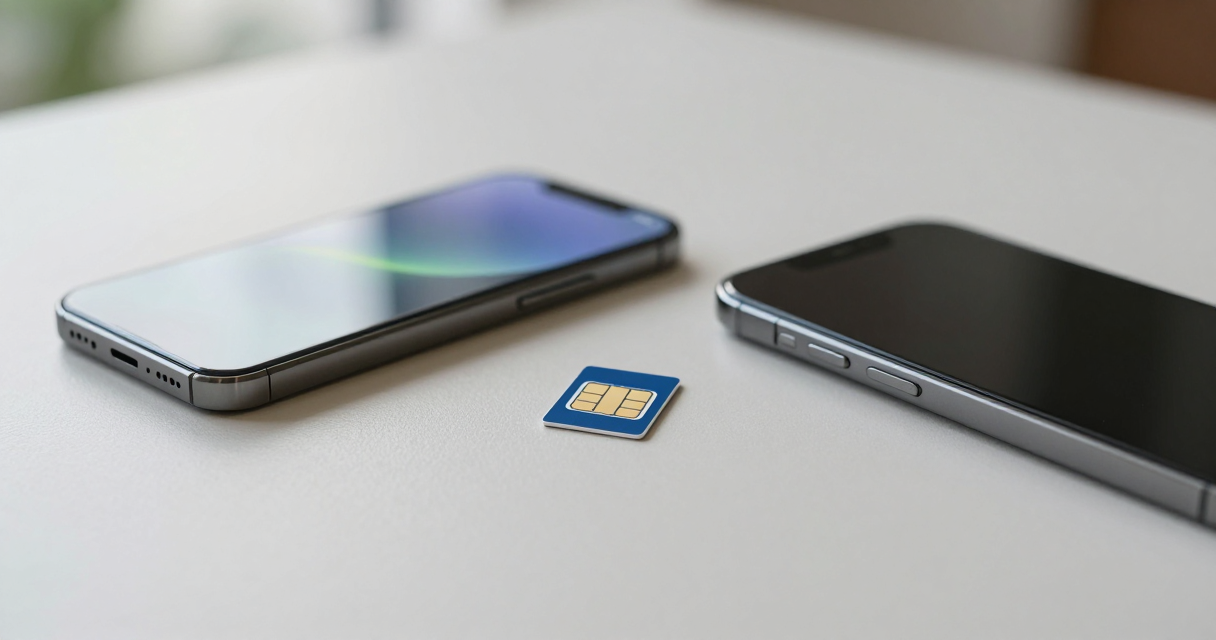
When quick fixes fail, a network settings reset is the next logical step. This action clears saved Wi‑Fi passwords, VPN configurations, and cellular settings, returning them to factory defaults. On iOS, this is found under “General” → “Transfer or Reset iPhone” → “Reset” → “Reset Network Settings.” On Android, the path is typically “Settings” → “System” → “Reset options” → “Reset Wi‑Fi, mobile & Bluetooth.” Note that you will need to re‑enter Wi‑Fi passwords after this reset, but the cellular profile usually re‑activates automatically once the device reconnects to the carrier’s network. If the problem persists even after a reset, it may indicate a deeper hardware issue or a carrier‑side provisioning error that requires professional assistance.
Future-Proofing Your eSIM Setup
Preventing eSIM connection problems before they start involves a few proactive habits that every frequent traveler should adopt. First, always backup your eSIM profile information, such as the QR code or activation details, in a secure location. If a device is lost or damaged, having this information on hand speeds up the reinstallation process dramatically. Second, keep a physical record of your carrier’s customer service number and your account PIN. While eSIMs are digital, the human element of carrier support remains essential for resolving complex provisioning issues.
Finally, consider the timing of when you activate a new eSIM profile. Avoid switching profiles right before a critical call or during a long flight where network availability is unpredictable. Instead, test new profiles in a stable environment home or a hotel with strong Wi‑Fi first. This allows you to troubleshoot any activation hiccups without the pressure of being offline in a remote area. By treating the eSIM profile with the same care as a physical SIM, and staying informed about your carrier’s capabilities, you can minimize downtime and keep your connection reliable across time zones and continents.

I’m a tech enthusiast who loves exploring how eSIMs simplify staying connected while traveling. I spend my free time testing new smartphones and sharing tips on getting the most out of mobile data abroad.